 Chirality
Chirality App · Optional
Professional workflows, developed with your agent.
Develop a workflow with an agent, try it on real work, review the result and refine it. Chirality App is a free Mac app for working through tasks and keeping useful methods as workflows. You can also use the Chirality Library with your existing agent. The App is optional.
Version 3.0.1 · Apple Silicon, macOS 15 or newer · Needs a ChatGPT account · Free and open source
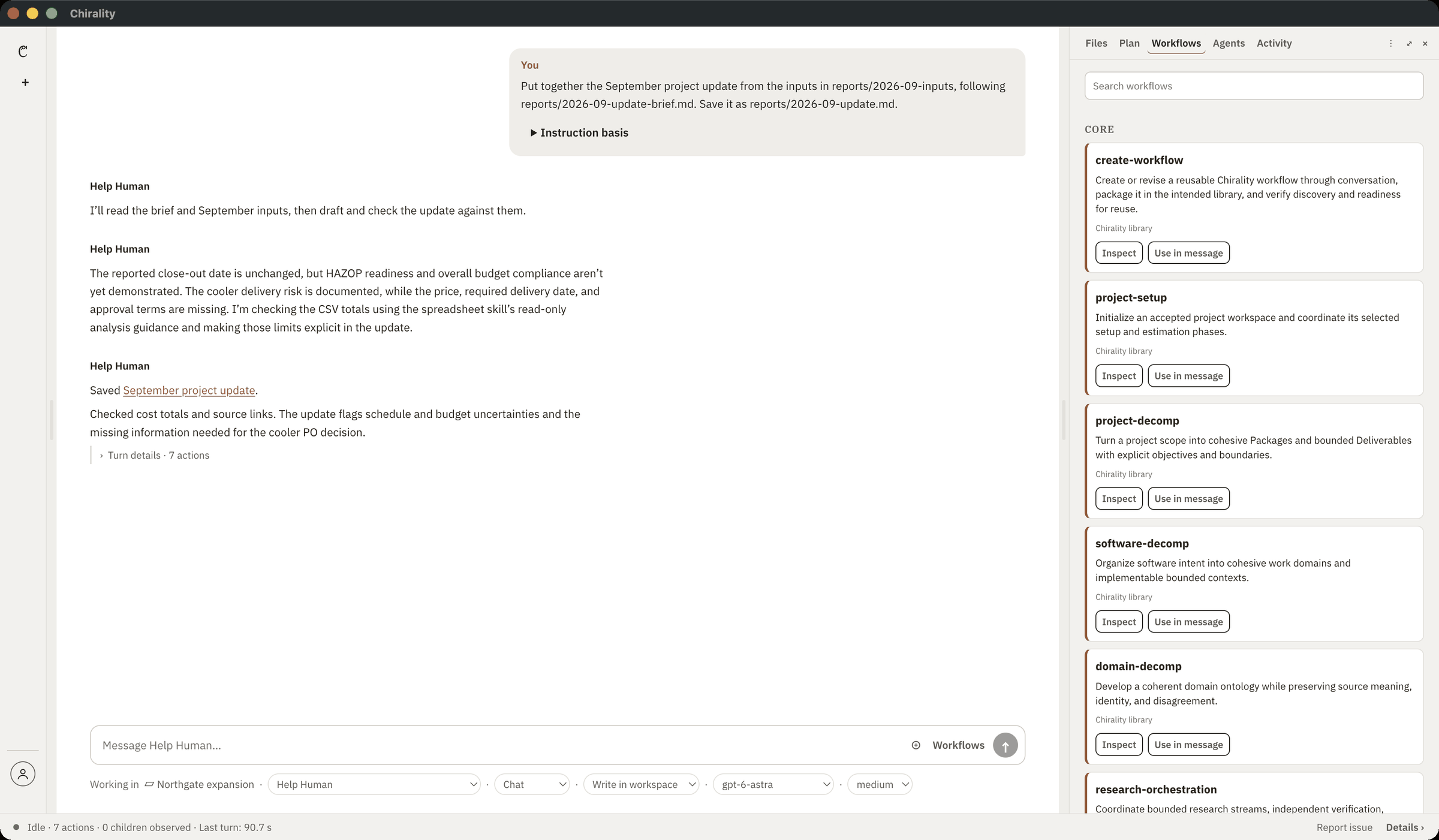
- Your files, your foldersIt works in folders you choose. Documents and workflows are ordinary files you own.
- About 80 workflows includedSome of them are the ones we used to build it. Ask the agent to write your own.
- You set what it may doRead only, ask before changes, or change files inside the project folder.
Installing, and your data
- What you need
- A Mac with Apple Silicon and macOS 15 or newer, and a ChatGPT account. There is no Chirality account.
- Installing
- From the 3.0.1 release, download the disk image, open it, and drag Chirality to Applications. Open it, sign in with your ChatGPT account, and choose a working folder. The App is signed and notarised, and the release page publishes its checksum.
- Updating
- The App checks for a new version when it starts and every six hours, and tells you when one is available. It never installs an update itself. Install the new version over the old one; your folders, conversations and workflows are kept.
- Where your work is kept
- Your documents and the workflows you save are ordinary files in your folders that you can use without the App. Conversations and plans are kept by the App on your Mac. The record identifies which model served each run.
- What goes to OpenAI
- Your messages, and whatever the agent reads while it works, under your ChatGPT account and OpenAI’s terms.
- What we receive
- Nothing. Chirality AI Ltd runs no server between you and OpenAI, and the App sends nothing to us.
- Permissions
- Set for each project and each request. Write in workspace, the default, lets the agent change files inside the project folder without asking and refuses anything outside it. Ask before changes asks first. Read only lets it read the project. Full access removes the limits and the prompts; use it only if you accept every action it takes.
- Network
- Apart from OpenAI, for sign-in and the model, the App connects only to GitHub, to check for updates. Commands the agent runs on your Mac have no internet access unless you allow it.
- Checking the results
- Read them before you rely on them. The agent makes mistakes, and workflows and checks catch some of them, not all.
- Problems
- Report an issue with what happened and the version shown in About Chirality. For anything else, write to hello@chirality.ai.
Version 4 · In development
Chirality App is being developed to bring those activities into a working environment with controls for human–agent teams: what agents may do, where approval is needed, and how people examine and accept their work. Version 4 is being built around working with Help Human: plan a task, carry it through, try a workflow, review the result and refine the method. The project also includes work to bring agents into other applications. SWBPIPE is the first integration in development.
App 3.0.1 remains available; development of that version has ended. The initial v4 release will be for macOS. A Windows version will follow. Follow its development on GitHub.
The v4 User Manual is being prepared alongside the App. Its procedures will be checked against the release candidate before publication.